


The original SyMAP was written for diverse plant genomes with short introns, but has been modified to work for the long introns of mammalian genomes, and less diverse genomes.
| 1. Build database Additional | 2. Load Project Parameters | 3. A&S Pair Parameters 4. Synteny parameter comparison |
1. Build database
| Start SyMAP | Load Project | Available Synteny | Align& Synteny | CPU& Verbose |
Start SyMAP
| To start SyMAP, type at the command line: ./symap
The Project Manager will be displayed. To view the command line options: ./symap -h | For the first time user of SyMAP, see:
|
Load Project
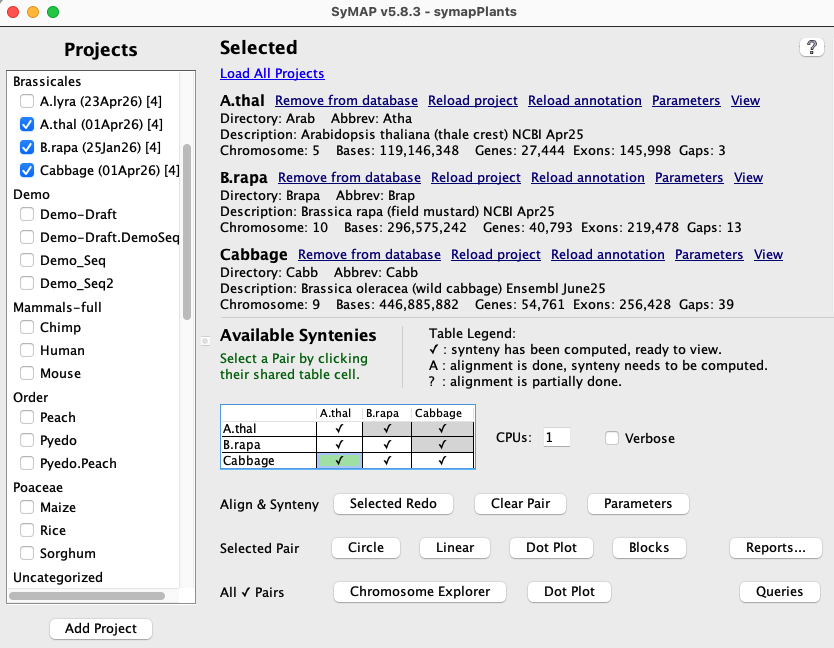
As shown in the Project Manager above, selected projects from the left panel will be listed in the Selected section on the right. The possible functions vary with the state, as listed below:| ♦ If there is any selected project not loaded to the database, you will see: | |
| Load All Projects | Load all projects that have not been loaded yet. |
| ♦ If a selected project is not loaded in the database, you will see: | |
| Remove from disk | Only: Remove results (MUMmer/Blast) directories from disk
All: Remove results (MUMmer/Blast) and project directory from disk Remove results removes the MUMmer /align and or the /blast directories from data/seq_results/<project1>_to_<project2> for this project . You will be prompted for each one to confirm you want it removed. If there are no alignments, you will only see the prompt Remove project to remove the project directory from disk. Remove project directory remove data/seq/<project-name> from disk. You will be prompted to confirm you want it removed. If removed, the project will no longer be shown on the left. |
| Load project | Loads the sequence and optional annotations to the database.
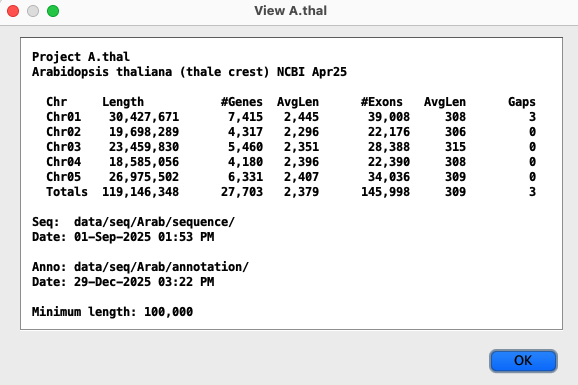
When loading is complete, always verify by selecting the View link, which provides a summary of what has been loaded (e.g. View Arabidopsis). |
| Parameters | This brings up a panel of parameters, see Project Parameters. After the project is loaded, you can still change the Display parameters. |
| ♦ If a project is loaded into the database, you will see: | |
| Remove from database | The projects and its synteny pairs will be removed from the database, but the files stay on disk. |
| Reload project | Only: reload project only.
All: reload project and remove MUMmer/Blast files from disk. If All is selected, it first prompts for each alignment directory for this project before it is removed. It removes the alignments, but it leaves the params.txt file. You will need to remove the alignment(s) if (1) there is a change in sequence, or (2) there is a change in the Minimal length parameter; see Load project parameters. For either option, it executes Remove from database followed by Load project. |
| Reload annotation | Removes the annotation from the database then load the annotations.
This does not effect the alignment, so they do not have to be redone. The Align&Synteny commands will recognize if there are existing alignments for the pair and use it for the clustering and synteny computations. |
| Parameters | This brings up the Project Parameters panel. |
| View | This bring up a panel of a summary of the loaded results, e.g. View Arabidopsis. |
For any action that will remove the project or alignments from disk, a popup will occur to confirm that you want this done! If it will be removing multiple alignment directories, it will prompt on each one.
Available Syntenies
Sequence alignments are performed with MUMmer or protein alignments with Blast/Diamond.This section shows a table with the status of alignments between the selected loaded projects. Each cell in the table represents a pair of projects and the cell contains a status code showing whether or not that pair has been aligned (codes are listed below). Note that the table shows each pair cell twice, but only the lower cells are activated.
Clicking on a cell selects that pair of projects (the cell will be highlighted in green), and the buttons that can be selected are activated.
| Code | Description |
| ✔ | Synteny for this project pair is ready to view. |
| A | The MUMmer alignment has been performed but the Clust&Synteny needs to be run; select Selected Redo. |
| ? | The alignment have not been completed. In this case, select Selected Redo and the alignments will be completed followed by the synteny computation. |
| B | A blast tabular file is available but the Load&Synteny needs to be run; select Selected Redo. |
| A/B | Both MUMmer and Blast files are available; select which to use on the Pair Parameters window. |
| The alignment has not been started. |
See Pair Parameters for additional information on the Available Syntenies and codes.
Align&Synteny
| Align&Synteny (A&S) | |
|
Selected Pair
Selected Redo | Run (or complete) the A&S computation for the selected project pair.
If the pair is already complete, the button label changes to Redo. This will rerun the Cluster&Synteny or run Load&Synteny, depending on the Pair Parameters settings. See the parameters's drop-down for some variations. If you wish to rerun the MUMmer alignment, first use the Clear Pair function. |
| Clear Pair | Only: remove synteny from database
All: remove synteny and MUMmer/Blast files from disk for this pair If you have changed the Alignment parameters, or loaded new sequence for one of the projects, you need to have the alignments removed and redone; otherwise, you can just remove the synteny from database. |
| Parameters | Set the Pair Parameters for the selected pair cell . |
For the display buttons, see User Guide.
CPU and Verbose
CPUs:- Enter the maximum number of CPUs to use for the multiple CPU computations.
- MUMmer uses multiple CPUs. For example, if there are 8 alignments to be done, it will perform 4 at a time.
- The viewSymap MSA alignment in Queries uses multiple CPUs.
Verbose checkbox:
- If checked, detailed summary information is written as it processes the MUMmer files. The information is written both to the terminal and the logs/<proj-to-proj>/symap.log file.
- If this is not checked, it will write status information repeatedly on the same terminal line.
- See Demo examples.
2. Load Project Parameters
| Parameter panel | Display | Load project | Load annotation | GFF Attributes | Save | Go to top |
Project Parameter panel
Note: as of v5.8.6, the xToSymap conversion programs include CDS coordinates in the converted .gff files. |
|
Display parameters
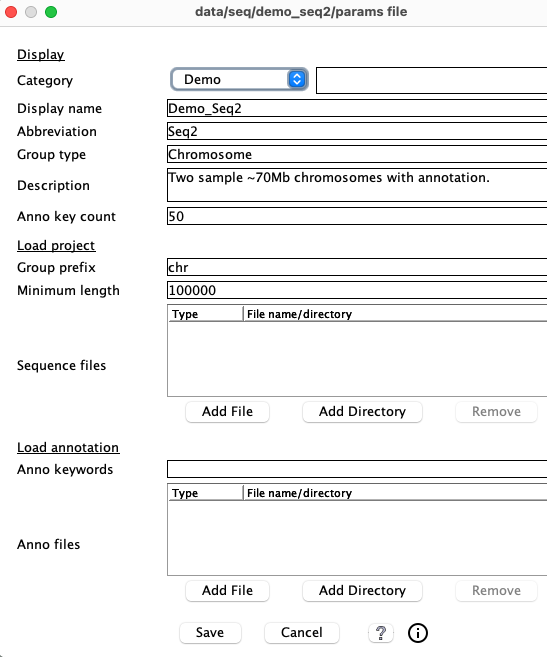
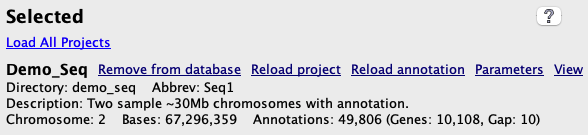
Most of the values in the parameter's Display section are shown in the Selected section of the Manager. New values take immediate effect on Save and are saved in the symap_5/data/seq/<project-name>/params.txt file.
| Parameter | Description | Default Value | Used In |
| Category |
Category label for the project. This is only used to group projects on the
left side of the Manager panel.
Category labels must be composed of only letters, numbers, dash, underscore, or period. Either select an existing label from the drop-down or enter a new one in the text box. Do NOT enter the same label with different capitalization -- it may mess-up. | Uncategorized | Selected |
| Display name | A user-friendly name for the project.
Shorter names will work better in the displays. Names must be composed of only letters, numbers, dash, underscore, period. It must be unique over all case-insensitive Display names and project-names. | project-name | Selected and all displays |
| Abbreviation | A name must be <= 5 characters.
Names must be composed of only letters, numbers, dash, underscore, period.
Uniqueness is not required over other Abbreviation. It can be the same as the corresponding Display name or project-name. However, it must be different between projects that are compared in Queries. | First 5 characters of Display name | Queries column headings and Pair Parameters |
| Description | Description of the project.
Do NOT use quotes, backslash or #. | New project | Selected and View |
| Group type | How to refer to the sequences. | Chromosome | Selected |
| Anno key count | This applies to the annotation attributes columns shown in the Queries results table. See the GFF Attributes section below. | 50 | -- |
Load project parameters
The following parameters are under the Load project section of the parameters panel.Group prefix
The term "Group" is used for any FASTA sequence type, e.g. chromosome, scaffold, contig.
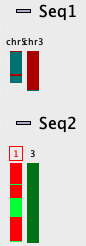
This option sounds trivial but is important for a good display, so please read carefully the following.
| 
|
Minimum length
This must be an integer, commas are allowed (e.g. 1,000,000).
This is the minimum length of the FASTA sequence that will be loaded; smaller sequences will be ignored. Note that annotations
for ignored sequences will also be ignored, but some warning messages will be printed to the terminal.
See xToSymap Length for help with setting this parameter.
Sequence files
Select the input FASTA sequence file(s) or directories of sequence files.
For formatting, see Sequence files.
Default location: data/seq/<project-name>/sequence
If any either the Sequence files or Minimal length parameters are changed:
- If the project has already been loaded, Reload Project.
- If A&S has previously been run, select Clear Pair and remove the alignment files, then run A&S.
Load annotation parameters
The following parameters are under the Load annotation section of the parameters panel.Exon/CDS toggle (v5.8.7 or later)
- The associated type of Exon or CDS will be loaded.
xToSymap started including CDSs in the GFF file in release v5.8.6. - There will be places where the term "Exon" is used to represent either Exon or CDS.
However, whether Exons or CDSs were loaded are shown in the following places:- View (e.g. click View panel):
This popup of loaded project information will state CDS or Exon.
When CDSs are loaded, this display has a Export button which allows exporting the protein sequences. This is necessary to Load Blast. - 2D:
The gene graphics will show the CDSs instead of exons.
The Align has an option to align spliced transcripts, which will use the CDSs instead of exons. - Queries:
MSA unique spliced transcripts option, will align the CDS sequences.
Export unique spliced transcripts option, where CDSs will be used instead of exons.
- View (e.g. click View panel):

Anno keywords
A comma separated list of keywords. This can be used to reduce the annotation attribute keywords
shown in the 2D display and Queries table, as described in the GFF Attributes section below.
Anno files
Select the input GFF3-formatted annotation files corresponding to your sequences. Note, using
a GFF3 file directly can cause problems if it does not conform to what SyMAP expects; see
Annotation files.
Annotation is optional but highly recommended. Default location: data/seq/<project-name>/annotation
If any of these are changed:
- If the annotation has already been loaded, Reload Annotation.
- If A&S has been previously run, re-run A&S (the existing alignments files will be reused).
GFF Attributes
If xToSymap was used to create the GFF file, then the attributes have already been filtered, and this section can probably be ignored.
This section discussed parameters Anno key count and Anno keywords.
It gives details on what GFF attributes are displayed in SyMAP, which refers to them as annotations.
The gene annotations are shown on the
2D display and as columns in the
Queries results table.
The attributes (annotations) comes from the last column of the GFF file. It is a keyword=value list, e.g.
ID=gene-AT1G01010;Name=NAC001;ID=rna-NM_099983.2;product=NAC domain containing protein 1Defaults: Generally, all genes in a file have the same keywords, in which case, use the defaults. This will cause the entire attribute to be shown for the gene in the 2D display, and the Queries table will have columns for each keyword that has over Anno key count (default 50) occurrences. In the example above, the columns will be ID, Name and product (the second ID will be ignored).
If there are many different keywords in the attribute list, this causes too many columns in the Queries table. This can be reduced by one (or both) of the following:
Anno key count: If there are many different keywords in the attribute list, set this count N to filter out all keywords with <N occurrences. The Anno key count can be modified at any time using symap (not viewSymap).
Anno keywords: The keyword=value pairs to be saved for each gene can be limited by listing the desired keywords separated by commas. Using this approach, it will also reduce annotation description per gene in the 2D display. Referring to the example above, if the string "ID, product" was entered for Anno keywords, the Name=value would not be part of any gene annotation. This must be set before Load Annotations is executed.
Saving project parameters
On Save and before loading the project, the parameters are saved to:data/seq/<project-name>/params.txtSave also saves the parameters in the database.
The params.txt file parameters are shown on the Project Parameters panel. These can only be viewed and changed using symap (not viewSymap). Do not edit params.txt with a standard editor.
3. A&S Pair Parameters
| Parameter panel | Alignment | Collinear Sets | Synteny | Save | Synteny Compare | Go to top |
Pair Parameter panel
The Available Syntenies section explains the table in the lower right.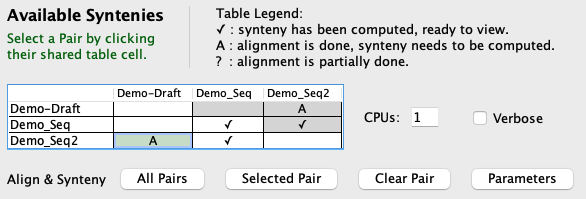
If a cell contains an A, the MUMmer alignments are complete and will not be redone. This is important because MUMmer is very time-consuming, but the synteny computation is not (see timing results); hence, one can make changes to the cluster or synteny parameters and re-run without redoing the alignments.
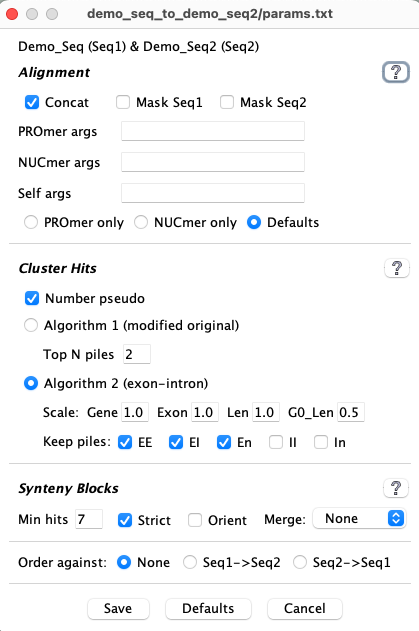
Select a pair cell in the Available Syntenies table followed by the Parameters button, which will popup the panel shown on the lower left; click + to open a section and show its associated parameters.
|
If a value in the pair cell exists and the parameters for a section are changed, do the following:
|
The Align&Synteny drop-down shows what will be run. If the alignment and synteny have been run, parameters can be changed and then different actions can be selected to re-run (see drop-down):
The parameters for each section are described below:
| Alignment | Collinear Sets | Synteny |
+ Alignment
|
• Use MUMmer:
MUMmer provides genome alignment, as described in MUMmer.
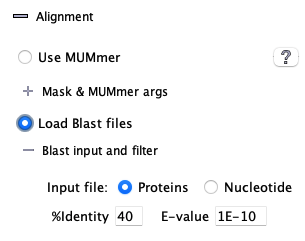
• Load Blast files: Blastp hits from a b6 tabular file can be loaded instead of running MUMmer, or to augment MUMmer results; see Load Blast for details. + Cluster MUMmer hits See MUMmer for clustering MUMmer hits. |
|
+ Collinear Sets
| Collinear Sets is abbreviated as "CoSet" below. A description of Collinear Sets is given in Details. | 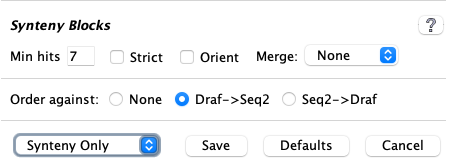
|
Parameters
| By Order By Size | The 1st option numbers the CoSets in descending order by the start coordinates.
The 2nd option sorts CoSets by size and then numbers then in ascending order by size. |
| Advanced Simple | The 1st option uses the advanced algorithm (released v5.8.8), which tries to find collinearity
in complex overlapped genes areas.
The 2nd option uses the original algorithm, which does not try to resolve overlapping genes. |
Suggestion:
- Use Advanced; if you do not like how it handles embedded genes, change to Simple.
- You can change the collinear parameters, then only execute the Collinear Set algorithm; see Save.
- The algorithm runs very quickly, e.g. 10 seconds for mouse compared to humans.
- If the Collinear sets have changed, and you are using the Synteny Strict option, you should rerun it with Synteny Only because it uses the collinear sets (see Strict below).
+ Synteny

| The image on the left shows the defaults. The one exception is that Strict is turned off for draft sequence. |
| Parameter | Description |
| Min Hits | Minimum number of anchors required to define a synteny block. |
| Strict | This uses the Original algorithm with the following changes:
|
| Orient | All hits in a block must have hits of the same orientation ('+/+' or '-/-') or different orientation ('+/-' or '-/+'). |
| Merge | Overlap: The blocks must overlap to be merged.
Close: Blocks that overlap or are close will be merged. |
If the Align&Synteny has already been executed, and you want to try different synteny parameter, you may just run the synteny algorithm as described in Save.
See Synteny parameter comparison for comparison of using the different synteny parameters. The following is a brief comparison of three images of the same regions when evaluated with the following 3 parameter sets:
Default (one block)
Same orient (three blocks)
Same orient with Merge (two blocks).

In the last image, the reverse orientation block is embedded in another block
Hints about synteny parameter settings
It is easier to experiment with synteny parameters since Synteny Only can be used to speed it up. For two genome complete sequence synteny, it is strongly suggested you start with Strict.
→ Suggestion: For large genomes, experiment with the parameters on just one or two pairs of the chromosomes; you can use xToSymap for the split. Note: the synteny results of one or two chromosomes will be slightly different compared to whole genome synteny.
Order against
For draft sequences, they may be ordered against another project. See Ordering details.In the synteny parameters above, the Draf->Seq2 and Seq2->Draf use the Abbreviation set in the Project parameters panel. The "->" indicates that the first sequence will be ordered against the second.
If the draft has been aligned to the Order against sequence, but this option was not set, it can be set and the Synteny Only setting used (described below in 3.e Save).
Drop-down and Save
Drop-down
| If the Align&Synteny has already been run, the top item of the drop-down will describe what will be run by default. There are additional options you may select, as follows: |

|
| Clust&Synteny | If you have changed the clustering parameters, select this option. It will be the default. |
| Load&Synteny | If you have Load Blast File selected, this option will show as the default. |
| Synteny Only | If you have only changed synteny parameters, select this option. |
| Number Pseudo | If you want to add pseudo numbers, select this option. |
| Collinear Sets | If you only want to redo the Collinear Sets computation, select this option. |
The Manager window button right after Align & Synteny will be labeled:
Clust&Synteny → Selected Redo
Load&Synteny → Selected Redo
Synteny Only → Synteny Only
Number Pseudo → Pseudo Only
Collinear Sets → Collinear
|
Once the button is clicked, a popup will give detailed information on the actions and parameters, select Confirm. | 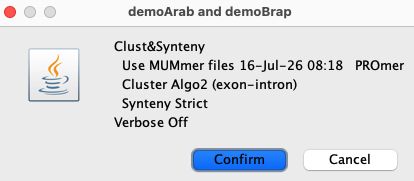
|
Saving pairs parameters
Before the A&S is executed, the parameters are saved indata/seq_results/<proj1-to-proj2>/params.txtOnce the A&S is executed, the parameters are stored in the database.
The file parameters are shown on the pair Parameter panel. These can only be viewed and changed using symap (not viewSymap).
Any parameter not the default will be shown on the Summary page.
BEWARE: If you run A&S, then change the PROmer or NUCmer settings, but forget to Clear Pair before running A&S again, the parameters on the Summary page will be wrong (SyMAP does not check for this situation).
4. Synteny parameter comparisons
The following is from comparing Arabidopsis thaliana chromosomes 1 and 2 with Brassica rapa chromosomes 1 and 7. The Clustering hits Algo2 (exon-intron) was used in all cases.
| Original vs Strict: Both allow a mix of inverted and non-inverted hits in a block, but Strict only allows small inversions within a non-inverted block and vice-versa (unless Merge is used). The Strict blocks tend to not have the tails of dots that have bigger gaps. | |
Original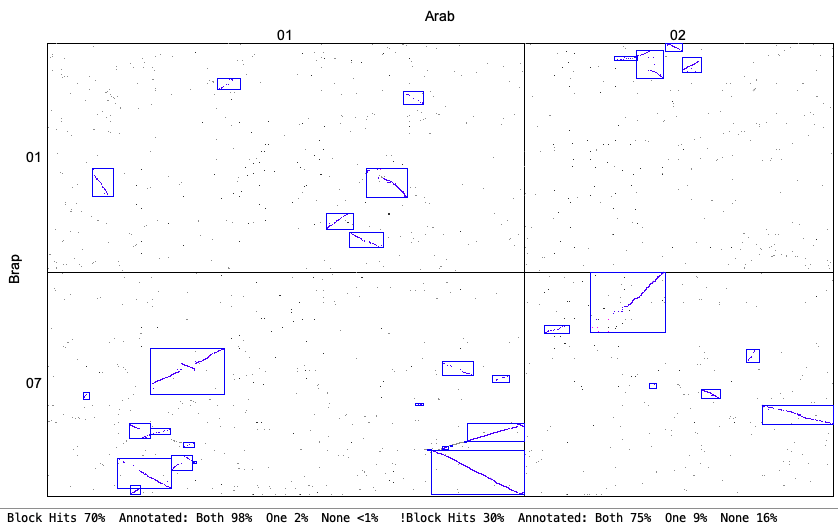
| Strict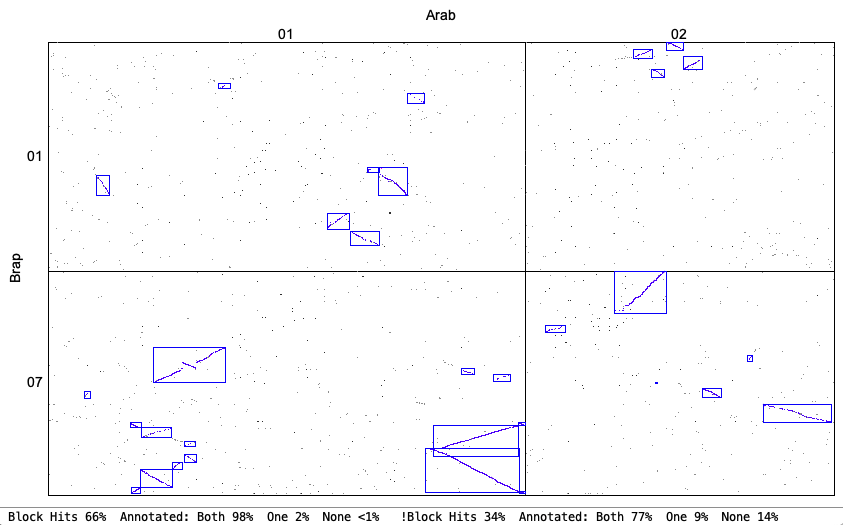
|
Original chr1&chr7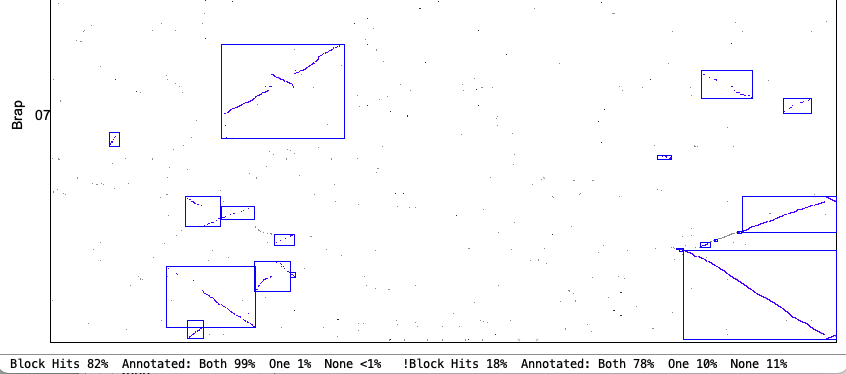
| Strict chr1&chr7
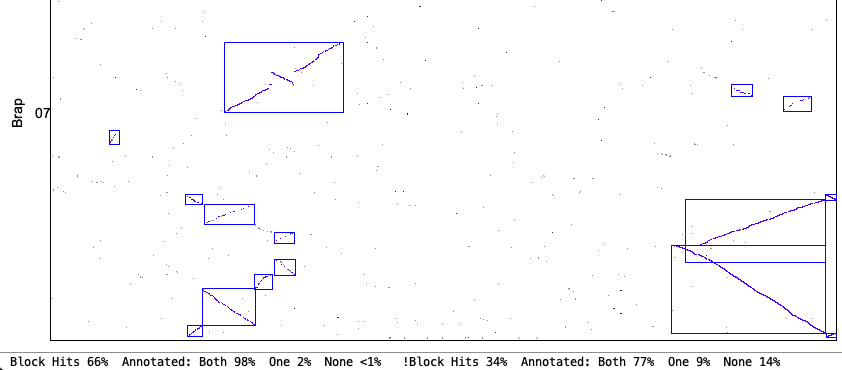
|
| Orient: This requires all hits in a block to be in the same orientation. This options fits with what some other software packages consider 'synteny'. | |
Original Orient chr1&chr7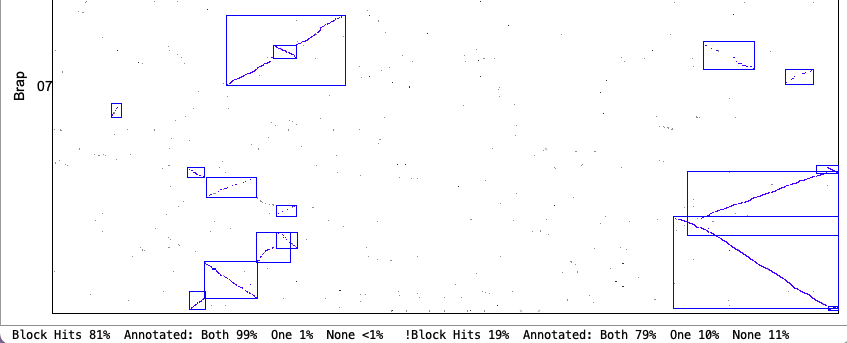
| Strict Orient chr1&chr7
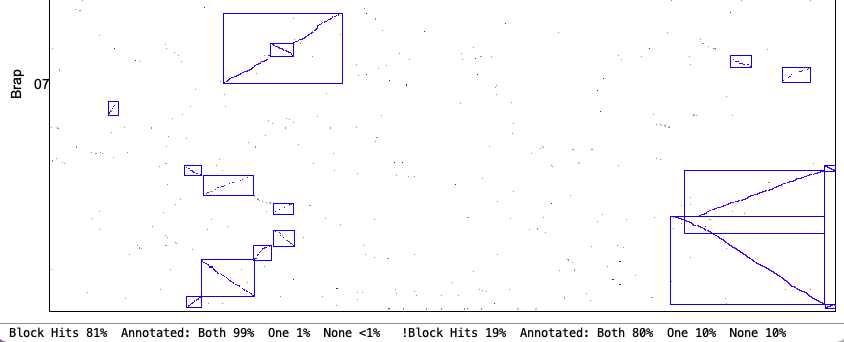
|
| Merge Overlap: Only overlapping blocks can be merged. This will have little effect if Orient has been used since mixed blocks cannot be merged. | |
Original Merge Overlap chr1&chr7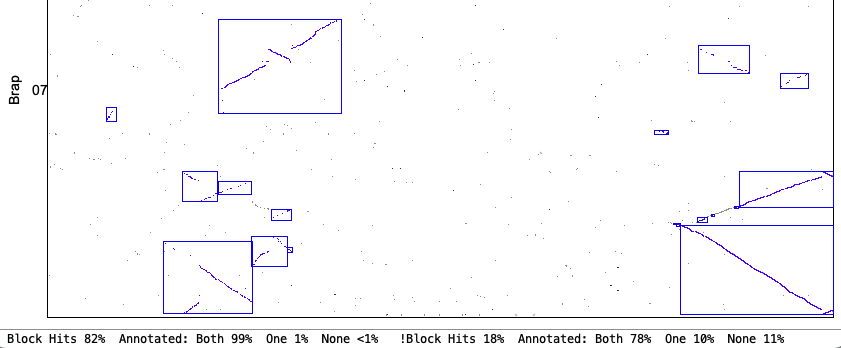
| Strict Merge Overlap chr1&chr7
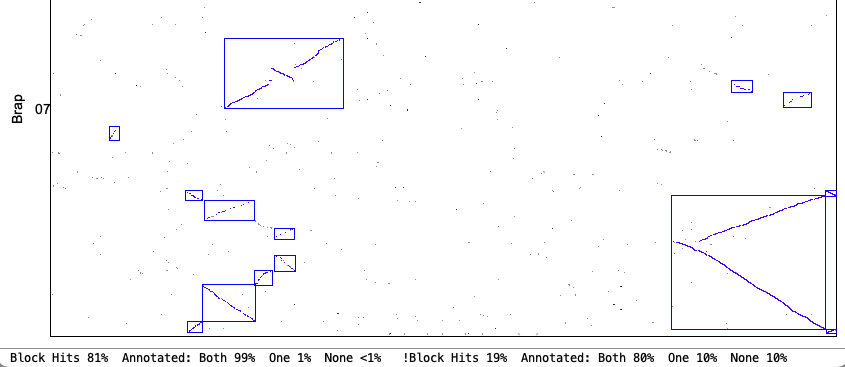
|
| Merge Close: Blocks that are close can be merged. | |
Original Merge Close chr1&chr7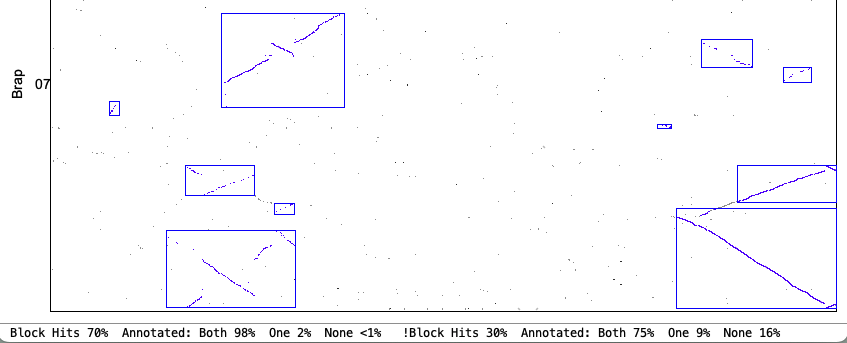
| Strict Merge Close chr1&chr7
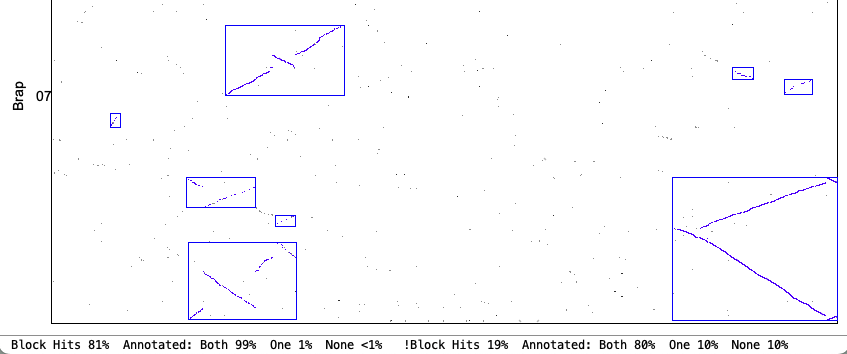
|
| Go to top |
Email: cas1@arizona.edu